Welcome to Smart Home Forum by FIBARO
Dear Guest,
as you can notice parts of Smart Home Forum by FIBARO is not available for you. You have to register in order to view all content and post in our community. Don't worry! Registration is a simple free process that requires minimal information for you to sign up. Become a part of of Smart Home Forum by FIBARO by creating an account.
As a member you can:
- Start new topics and reply to others
- Follow topics and users to get email updates
- Get your own profile page and make new friends
- Send personal messages
- ... and learn a lot about our system!
Regards,
Smart Home Forum by FIBARO Team
Search the Community
Showing results for tags 'wwwapi monitor'.
Found 2 results
-
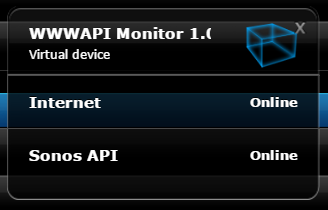
Hi Everyone, What started out as a basic device monitor is now evolving into a family of offerings. As of today I am releasing a second offering (WWWAPI Monitor) and will be releasing a third offering in the coming week. As of today the family of monitors are as follows 1) WWWAPI Monitor {v1.0} - New (Mar8th) - vd that monitors only availability of the internet with option for sonos-api device. 2) Network Device Monitor VD {v2.5 } - vd that can monitor several + devices and has built-in alert notification options (pushover/pc2popup/hc2email/allinone) .... and coming soon 3) Network Device Monitor for SMsgH {v1.0} - monitor designed to be used with the recently released Smart Message Hub {v1.0} Regards [Autofrank] WWWAPI Device Monitor {v1.0} - Released March 8th This has been designed as a Plug and Play version of the LAN Monitor VD. This new virtual device will just monitor the internet and can also monitor the device (raspberry pi, arduino, omega, etc) that is hosting sonos-api if desired. This version does not have any in-built notification options like the LAN Monitor VD 2.5. It has been designed to leverage the full range of notification and re-routing capability the Smart Message Hub {v1.0} This simplified monitor is designed for users that haven't or don't want to adopt the full LAN monitor but want to be able to leverage the notification queue capability of this Smart Message Hub scene INSTALLATION & CONFIGURATION Import the VD and globals will be created automatcally when the VD is saved The default table in the virtual device is as follows wwwapiTable = { {device="Internet", ip="213.233.153.244", port="80", online = "0", alert = "1", alertTrack = "1"}, {device="SonosAPI", ip="192.168.1.89", port="22", online = "0", alert = "1", alertTrack = "1"}, } The virtual; device has already been set up to monitor the Internet (www.google.com) If you wish to monitor a device hosting the sonos-api then modify the ip address to your setup (if you don't wish to monitor the sonos-api you can remove that entry from the table below and also remove the virtual device label that is displaying its status If you wish to have offline/online status alerts set the alert = 1 for the respective device There are just two configuration options local SMsgH = "false" -- Notification Alerts that utilise the Smart Message Hub scene Set to true of you wish the alerts to be sent via the Smart Message Hub When you run the scene first or if you modify the table in the scene you will need to set this to true local updateData = "true" -- Set to true to update the data in the table. ** SET BACK TO FALSE ONCE COMPLETE TO RUN THE VD IN NORMAL MODE** and that's it AutoFrank FILES Virtual Device ------------------------------> WWWAPI_Monitor_1.0.vfib
-
WWWAPI Device Monitor {v1.0} - Released March 8th This has been designed as a Plug and Play version of the LAN Monitor VD. This new virtual device will just monitor the internet and can also monitor the device (raspberry pi, arduino, omega, etc) that is hosting sonos-api if desired. This version does not have any in-built notification options like the LAN Monitor VD 2.5. It has been designed to leverage the full range of notification and re-routing capability the Smart Message Hub {v1.0} This simplified monitor is designed for users that haven't or don't want to adopt the full LAN monitor but want to be able to leverage the notification queue capability of this Smart Message Hub scene INSTALLATION & CONFIGURATION Import the VD and globals will be created automatcally when the VD is saved The default table in the virtual device is as follows wwwapiTable = { {device="Internet", ip="213.233.153.244", port="80", online = "0", alert = "1", alertTrack = "1"}, {device="SonosAPI", ip="192.168.1.89", port="22", online = "0", alert = "1", alertTrack = "1"}, } The virtual; device has already been set up to monitor the Internet (www.google.com) If you wish to monitor a device hosting the sonos-api then modify the ip address to your setup (if you don't wish to monitor the sonos-api you can remove that entry from the table below and also remove the virtual device label that is displaying its status If you wish to have offline/online status alerts set the alert = 1 for the respective device There are just two configuration options local SMsgH = "false" -- Notification Alerts that utilise the Smart Message Hub scene Set to true of you wish the alerts to be sent via the Smart Message Hub When you run the scene first or if you modify the table in the scene you will need to set this to true local updateData = "true" -- Set to true to update the data in the table. ** SET BACK TO FALSE ONCE COMPLETE TO RUN THE VD IN NORMAL MODE** and that's it AutoFrank FILES WWWAPI_Monitor_1.0.vfib