Welcome to Smart Home Forum by FIBARO
Dear Guest,
as you can notice parts of Smart Home Forum by FIBARO is not available for you. You have to register in order to view all content and post in our community. Don't worry! Registration is a simple free process that requires minimal information for you to sign up. Become a part of of Smart Home Forum by FIBARO by creating an account.
As a member you can:
- Start new topics and reply to others
- Follow topics and users to get email updates
- Get your own profile page and make new friends
- Send personal messages
- ... and learn a lot about our system!
Regards,
Smart Home Forum by FIBARO Team
Search the Community
Showing results for tags 'all-in-one'.
Found 4 results
-
Many users have downloaded All-in-One Scene and I believe there are some questions about usage. The purpose of this topic is to help to get most of All-in-One Scene , to share best ideas/actions and solutions. Please feel free to ask any scene's related question and I'll share my best solution with you.
-
Version 22.0
4,310 downloads
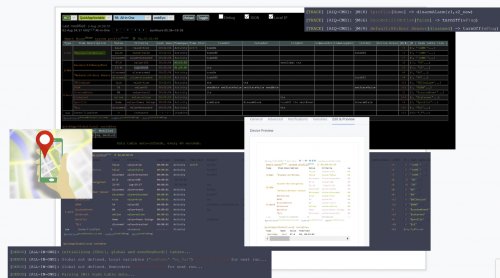
🧠 What AOQ (All-in-One QuickApp) Offers Multi-System Control: Seamlessly manages HC3, HC2, and HCL controllers using master/slave architecture. Unified Automation: Replaces scattered Lua and Block scenes with one centralized QA. Device Intelligence: Auto-detects Z-Wave, ZigBee, Nice, QA devices, and scenes. Alarm Zone Management: Identifies breached zones/sensors and triggers actions. Custom Events & Profiles: Supports dynamic profiles and custom rule-based automation. 🛠️ Core Configuration: Job Management - jM{} Hash Table Each line in jM{} includes: Field Description Time Span Duration in minutes for monitoring or action. 0 = activity only, negative = suspended IDs List Devices/scenes/variables/keywords (e.g., `"137,630"or"_45"` for scenes) Criteria & Rules Optional conditions like state="value=true" or property="power" Action Tables Optional commands: trueAct{}, falseAct{}, trigAct{}, etc. 🔄 Device Aliasing with jS2n{} Avoid hardcoding device IDs: jS2n = {mSensor=200, boiler=137, dryer=630, light=230, timeScene="_17"} Use aliases in jM{}: jM={ {15,"`mSensor`",{state="value=true", trueAct={"`light`", "turnOn"},falseAct={"`light`", "turnOff"}}} } 🔍 Monitor Option Detects inactivity or failure to report: {8, "`timeScene` and _545", {timeSlot="10:00~22:00"}} -- scenes must be active every 8 min between 10am to 22pm {10, "`boiler`and 145", {property="power"}} -- must report power every 10 min {30, "`boiler`", {state="power>100"}} -- alert if power >100 for 30 min ⚙️ Control Option Example: Turn on light when motion sensor is breached, turn off after 3 min when motion sensor back to safe: jM={"`mSensor`",{state="value=true",trueAct={"`lightSw`","turnOn"},falseAct={"`lightSw`","turnOff", "180"}}} To restrict to nighttime: jM={"`mSensor`",{state="value=true",timeslot="18:00~07:00", trueAct={"`lightSw`","turnOn"},falseAct={"`lightSw`","turnOff", "180"}}} Example: Turn on light when motion sensor is breached, turn off after 3 min (regardless of when motion sensor back to safe) jM={"`mSensor`",{state="value=true", trueAct={{"`lightSw`","turnOn"},{"`lightSw`","turnOff", "180"}}}} 🧪 Debug & Table View Debugger Output: Shows executed commands with color-coded status. Table Header: Displays system info, sunrise/sunset, home/vacation mode, system traffic. Columns: Device type, ID, name, battery status Criteria evaluation Alerts and elapsed time Action tables and active rules 📊 Top Active Monitor (New) AOQ now includes an enhanced Top Active Devices monitor designed to identify devices that may destabilize HC3 performance. It analyzes lifetime activity, current load per hour, and burst behavior to detect devices generating excessive or abnormal traffic. The table highlights devices that may cause delays, radio congestion, disconnects, or even controller restarts. A Peak/h column appears only when abnormal bursts are detected, helping users quickly locate problematic devices without cluttering the interface. 📘 Want to Go Deeper? You can find the full documentation and guides on the Smart Home Forum by FIBARO, including: AOQ Advanced User’s Guide AOQ Quick Guide AOQ HC-WebEye Viewer -

Version 4.0
440 downloads
Contributions & credits @jgab - fibaroapiHC3.lua (SDK for remote and offline HC3 development) @10der - Visual Studio LUA environment. AOR – Advanced Offline Remote for Full Control of Your Fibaro System from Your PC AOR brings a whole new level of freedom to Fibaro users. Whether you’re running HC3, HC2, HCL, HC3L, or Yubii, AOR lets you control and automate everything directly from your PC using ZeroBrane Studio or Visual Studio Code. With full LUA 5.3 support, you can finally work without limits: read and write files, run programs on your computer, integrate external systems, and build your own advanced automation logic — all from one place. And yes… even HCL users can now enjoy real LUA scripting without block scenes or restricted virtual devices. No migration, no master/slave setup, no headaches. Easy to Start Download AOR_ZB.txt for ZeroBrane Download AOR_VS.txt for Visual Studio Code Just rename the file to .zip, extract it, and you’re ready to go. Smarter Alerts, Better Awareness AOR includes built‑in Text‑to‑Speech support, so your PC can speak alerts out loud. Stay aware of important events instantly — no matter what you’re doing. Designed for Complete Home Awareness AOR automatically recognizes everything across your controllers: Z‑Wave devices ZigBee devices Nice devices QuickApps LUA and Block scenes Global variables Keywords You can monitor, control, and automate devices across multiple controllers — all without adding any load to your Fibaro hubs. Just keep your PC awake and let AOR do the rest. Powerful Monitoring Scenes stuck? Devices not reporting? Variables frozen? AOR keeps an eye on everything and notifies you the moment something stops behaving as expected. You’ll know about issues long before they become real problems. Advanced Control Logic Create powerful automations that react instantly to: Device states Value changes Time conditions Calculations Custom rules Turn lights on across controllers, trigger actions based on motion, run your own LUA functions — AOR gives you full creative freedom. Your Own LUA Functions, Fully Supported Want to run your own code when something happens? AOR can call your custom LUA functions and pass values directly to them. It’s automation exactly the way you want it. For more details please download AOR Installation AOR Advanced User’s Guide - complete instructions and information AOR Quick Reference Guide – syntax format reference and examples AOR User functions – write your own code. GPS User Guide - location functionality Microsoft Visual Studio debug console ZeroBrane console output Web view- 1 review
-
- 1
-

-
- aor
- all-in-one
- (and 2 more)
-
Version 9.6
4,185 downloads
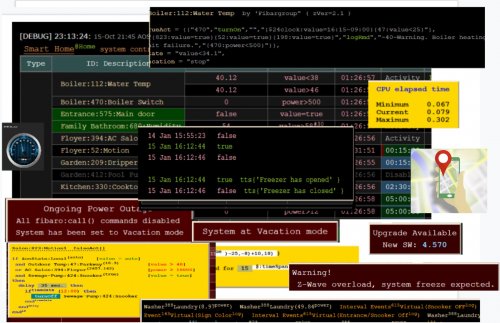
This script is designated to control and monitor your home system. Script automatically identifies the type of elements in the system. (Z-wave device, virtual device, scene, automatic scene (Block, Magic or Lua). Any valid Z-wave device property and his value could be monitored, controlled and execute commands accordingly. If you don’t want or need to use this script, but have issues with your system (like delays, z-wave devices don’t respond always, scene receives no triggers), it helpful to run this scene as is (without any changes) just to monitor and to identify z-wave “dead” and/or NACK occurrences in your system. You’ll receive on-line notifications about it. The first time you use All-in-One Scene, you will need to define jM {} hash table. Each line in table has two mandatory and two optional fields. jM={ { 15, "137|630",{timeSlot={“12:00~18:00”},state="value=true", trueAct={“|230|”, “turnOn”,””}}} } time span IDs list Criteria & Rules Action tables a) time span a period of time (in minutes) within which some activity must be performed by device or scene. Additional two option could be defined: I. time span = 0 defines the line as activity only. II. time span = ‘negative number’ line is suspended (remarked) b) IDs list given list of devices/scenes/VD/global/keywords. Use under score for scene IDs. (“_45”). a) global variable – add an ampersand sign & to global variable name: &varName b) keyword – add a dollar sign $ to keyword variable: $name Note: To use & and $ characters for other purpose , add % after the character. c) Criteria & Rules (optional) property, state, time slot, vacation mode… d) Action tables (optional) tables of commands to be executed. By defining String-to-number table which converts device name to ID jS2n= {boiler=137, dryer=630} jM{} above table will look like, device name must be included within back apostrophe sign. jM={ { 15, "`boiler`|`dryer`",{timeSlot={“12:00~18:00”},state="value=true", trueAct={“|230|”, “turnOn”,””}}} } 1. Monitor option There are so many times that scenes or Virtual devices are stuck w/o any understandable reason. Some devices suddenly stop to send reports or don’t change state. In most of the cases we don’t aware about the problem till something goes very wrong. The monitor option will send an alert in case of defined states are timed out. Note: In order to monitor virtual devices, fibaro:log() command must be included in main loop or in button’s code. For example, just add fibaro:log(“done”) at end of your main loop and VD could be monitored. Example to set watchdog timer for devices, scenes, virtual devices, global variables and keywords jM={ {8, "_17|_545",{timeSlot=”10:00~22:00”}}, -- within every 8 min. between 10am to 10pm, scenes 17, 545 must be active. If not alert sent. {3,"134|618|_556|_588"}, -- within every 3 min. devices 134,618 and scenes 556,588 must be active. If not auto-alert sent. {10,”132|145”,{property=”power”}}, -- within every 10 min. devices in list must report new power value. If not auto-alert sent. {5,”112”,{state=”value=true”}}, -- if device’s value is true over 5 minutes, auto-alert sent. (e.g. device stuck in breached state) {30,”470”,{state=”power>10”}}, -- if device’s power greater than 10 over 30 minutes, auto-alert sent. {20,”&HomeStatus|$iDoor”}} -- if global variable HomeStatus or keyword iDoor didn’t change within 20 min., auto-alert sent. 2. Control option This part of the script enables execution of actions based on device state or value changes. Script supports many options, calculations, time modifications, if statement and other features to do almost everything that you need to control your home just with one scene (which even doesn’t trigger by the system). Six action tables could be defined: (See AOS Advanced User’s Guide for more information.) trueAct{} - executed when state status is true. Please do not confused between state and value. If state defined as “value=false”, state status is true when value of device is false. falseAct{} - executed when state status is false. Please do not confused between state and value. If state defined as “value=false”, state status is false when value of device is true. trigAct{} - executed on every value change at any mode, true or false timeoutAct{} - Disables auto-alert notification and executed when elapsed time exceeds time span. Time span counting restarted after state status back to true. timeLoopAct{} - Disables auto-alert notification and executed when elapsed time exceeds time span. Time counting restarted immediately even if status remains true (no back to true change required). InitAct{} - Set of specific actions to be executed on startup only. Here is an example of most common wanted scenario, to turn on light when motion sensor breached and turn off light when sensor back to safe after few minutes (3 min. in this example) jM={0,”`mSensor`”,{state=”value=true”,trueAct={“`lightSw`”,”turnOn”,””},falseAct={“`lightSw`”,”turnOff”,”180”}}} Since no need to turn on light during the day, timeslot could be defined jM={0,”`mSensor`”,{state=”value=true”,timeslot=”18:00~07:00”,trueAct={“`lightSw`”,”turnOn”,””},falseAct={“`lightSw`”,”turnOff”,”180”}}} But now could be an issue to turn off the light, if sensor breached few seconds before end of timeslot and back to safe out of time slot, falseAct{} table won’t be executed. In this case, turning light off should be part of trueAct{} table jM={0,"`mSensor`”,{state=”value=true”,timeslot=”18:00~07:00”,trueAct={{“`lightSw`”,”turnOn”,””},{“`lightSw`”,”turnOff”,”180”}}} Same Z-wave device, global variable and keyword could be defined at several lines (no limit). Scene and Virtual devices could be defined one time only. Please download 1. AOS Advanced User’s Guide - complete instructions and information 2. AOS Quick Guide – syntax format reference and examples 3. AOS HC-WebEye Viewer Guide - AOS browser viewer guide 4. timeDrift – If you considering to use time drift correction, please download this scene and follow instructions at header. Script Advantages: No Lua or any software knowledge required. Supports time drift correction. (download timeDrift scene) Supports vacation and power outage modes. Provides excellent view of all devices, global and keyword variables at a glance, including: status, current value, up to 20 last values & executed commands. (Defined by dataRecord variable) Each command to be executed with current variable values is shown All items displayed by their names, including VD buttons in human readable format (not just IDs) At the bottom of the table up to 50 last commands in execution order are displayed (defined by cnnLine variable) Commands executed much faster than using system’s standard triggering mechanism (Lua, Block or Magic) No limits of scene’s “Max. running instances” Complex operation could be executed by newbie users (like experts). Anti-ripple delay could be applied. (change status after specific delay according to latest value) Actions could be executed by/from Scenes and VDs. Add/Change/Suspend any action in few seconds of work. Z-Wave traffic always monitored and summary of the traffic displayed. Dead and NACK occurrences of entire system immediately reported, recorded and notification sent to user. Repeated commands and device’s reports (RPT) of entire system are recorded and displayed. Global variables names, elapsed time from last change and their current values are shown. (Variables used in table) Details of all actions and commands are displayed in popup menus. Keeps Z-wave traffic low as possible by verifying device state before sending command. If device ID changed (excluded/included), user needs to update device ID in one place only! No extra jSON tables. Keeps your RAM load low All data displayed as a table where all configured devices and their related data displayed in human readable format. Extra button 'Refresh' will appear and covers 'Clear' button. Press ‘Refresh’ or ‘Start’ buttons to refresh table data. Table's header includes: startup time stamp, script current version, scene Name, LED as displayed at HC2 front panel, sunrise/set hours. System name – by hovering mouse over, system inventory shown Current home mode (@home or @vacation) system status - by hovering mouse over, last system's activities is shown Elapsed time Total Z-wave events - by hovering mouse over summary of all activities shown Min, average and max Z-traffic, by hovering mouse over CPU elapsed time shown By hovering mouse over column headers, quick guide is shown. Quick guide displayed during 5 minutes from startup. On every manual refresh, the guide displayed for next 5 minutes. Table columns are: Type – device type (Z.Device, G. Variable, V.Device, luaScene, blockScene, magicScene, Auto-luaScene, Auto-blockScene, Auto-magicScene). By hovering mouse over Z.dev type column, top active devices are shown. User configurable by setting topActive global variable. (0-30) default 15 ID: Description – room name: device ID: device name. Z-wave devices sorted by rooms, then by device ID. Battery capable device have green background according to current battery level. If device armed, alarm icon appears.By hovering mouse over, inventory of devices in jM{} table are shown. Value – items current value. By hovering mouse over, latest values, trigger value and command executed are shown. Criteria – state of evaluation to determine true or false status. If formula included, the state displayed in Italic fonts and by hovering mouse over, popup menu shows the formula and calculations Last seen – elapsed time since last status change. Alert – by default this column isn’t shown. If any devices have been alerted the column will be shown. Please notice that in some cases the device could be alerted, but after while it could back to normal activity. For example, if motion sensor is breached over specified time-span, alert notification will be sent. But after a while the sensor back to safe and alert is canceled, “back to normal” notification will be sent. At header of alert column shown current number of alerts Time Span – time span to monitor state of items. By hovering mouse over, maximum reached span time shown. If time span set to 0, then this line acts as activity, no timeout alerts reported. If time span set to negative number, this line is suspended and no actions executed. Time Slot – Active time slot range to execute related actions. Timestamp to execute specific action at specific time. trueAct – list of actions to execute when state is true. falseAct – list of actions to execute when state is true. trigAct – list of actions when value changes timeoutAct – list of actions to execute when time-span reached. Timer will be restarted when device state changed again to true. timeLoopAct – list of actions to execute when time-span reached. Timer restarted if state still true (no state changes required) initAct – list of actions to execute when scene started. By hovering mouse on actions cells, action’s details are shown In shown example for trueAct{} actions: a) time span of irrigation system calculated on line according to ambient temperature. min(max(floor(@47>value)-25,0)+10,18) b) TTS message announced (Garden Dripper has started) c) Irrigation is turned ON. The entire execution process is shown including all calculations, so user could see what exactly will happened. VacMode – vacation mode. In vacation mode by default timeSpan ignored and all Z-wave devices are converted to Activities, Scenes and VDs are not monitored. Non default vacation state could be defined in each line (vacation=”normal” or “stop”). Device index in jM{} hash table – shows device location in jM{} hash table. By hovering mouse over cells, device description, manufacturer, zwave version and JM{} line shown. At the bottom of the table list of up to 60 last executed actions (in order of execution) is displayed. (like CNN news line). If the device has same state as required by command, command isn’t executed and colored pink. Table color code: 1. Value, Criteria and Last seen columns green – state is true pink – state is false yellow – out of defined time slot, no actions or monitoring done. gray – line suspended. To suspend the line, set time-span to negative value. red - in alert-state, means this line exceeds time-span and auto-alert sent. 2. Time Slot black background and Suspended/Disabled label in gray means this line is inactive. Gray background and Activity label in green means the device assigned to control only. (Time span is zero). green background and red progress bar, device is monitored. On timeout auto-alert sent. blue background and purple progress bar, device is monitored and on timeout actions executed. (No alerts) If global variable in use, following table will be displayed Type – two types are available, Local and Global variable. Local means ‘global’ variable in use within the script (if global4local defined, those values are saved). Global is actual global variable of the system. Name – variable name Value – current variable value Modified – elapsed time since last change In case dead or nAck communication occurred following table will be displayed ID - device ID and his description is shown. nAck – number of “transfer failed” events occurred. Dead – number of “dead” reports received Is dead – current device dead status (true or false) Events history – last nACk and/or Dead events received and time-stamp of each event. Table of top active devices in your system is shown and could be used to analyze and reduce your Z-traffic. Up to 30 devices could be displayed by user configurable variable topZwave . Default is 15 ID - Since most of the devices has number of slaves, master device ID and his description is shown. By hovering on the line, slave devices and his number of events will be displayed. # – number of events occurred. % – Percentage of total events. In case reminders are active following table displayed: Rate – time interval to execute reminder RunTerms – triggers list to active reminder Note – send message as notification Reminder – reminder message By hovering mouse over “Run Terms” header, condition details displayed. Following actions are built-in : addRmd, logRmd, setRmd, delRmd, delAllRmd - reminders control disableScene, enableScene, startScene, killScene – scene control forceArm, setArmed – alarm control pressButton , setSlider, setProperty– virtual device control reboot, shutdown – system actions sendEmail, sendPush, sendiPush, sendPopup, sendNote, sendSms*, tts* – notification control setColor, setValue, turnOn, turnOff – Z-wave devices control setTimeSpan, setTimeSlot, setTimeDrift, timeSpanOn - time control setState, setStateValue, setStateDelay, setStateFormula -- parameters control vacOn, vacOff, powerOutage– special modes *not supported by the script. User defined functions. All valid actions or properties of any Zwave, Plugin or VD devices are fully supported also. By insert a new action in the tables, the action will be verified by the code and if it's valid will be in use. Special features If an error occurs during run time, it will be displayed on fixed type men. Scene will continue to run. By manual refreshing the table three times error is no longer displayed. When power outage mode activated, fixed menu displayed When vacation mode activated, fixed menu displayed As mentioned at the beginning, scene stuck without any reason and it’s true for this scene as well. To make sure that user will be notify if the scene is failed, weather triggers at the header of the script have been defined (these triggers exists by default at all systems and always work). When trigger received and the scene is failed, notification including last debug/error message sent to user. If autoRestart set to true, scene restarted automatically. Usually it takes awhile to receive weather trigger, so to speed up failure detection, recommended to add additional trigger (like motion sensor or any other device which is active often at your home) Please do not remove weather triggers… during normal operation all triggers are ignored. --[[ %% autostart %% properties %% weather Temperature Humidity Wind WeatherCondition --]] Using this script, I’m able to control over 95% percent of my needs, including irrigation system, heating system, bathrooms fans, all motion and door sensors, air conditioners and more. In my system then number of scenes reduced from 48 to 4 and virtual devices from 11 to 2. In addition my RAM consumption reduced from ~80% to 30%. The script has many options and features, so any action could be executed in several ways therefore please feel free to ask about implementation. The code is over 1,000 lines, but only ~15% of the code is actually running. Rest of the code is to display, initialize and to validate hash table data on startup. Code covers ~80 hash table syntax errors. Please read carefully displayed errors and follow instructions.- 58 comments
- 2 reviews
-
- 1
-
-
- scene
- all-in-one
- (and 1 more)