About This File
⚡ Zigbee Monitor – A Complete Health Dashboard for Your Zigbee
This QuickApp gives you a real‑time, high‑precision diagnostic view of your entire ZigBee network.
It tracks every device, evaluates link quality, detects ZigBee Engine freezes or crashes, highlights weak or unstable nodes, monitors battery health, and records communication drops over time.
Automatic sorting, color‑coded warnings, min/max LQI history, and intelligent ZigBee Engine health scoring, it turns your HC3 into a full ZigBee analytics console—making mesh problems visible instantly instead of guessing in the dark.
📑 Table Columns
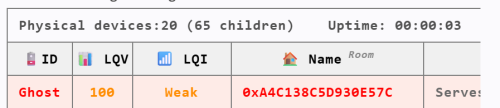
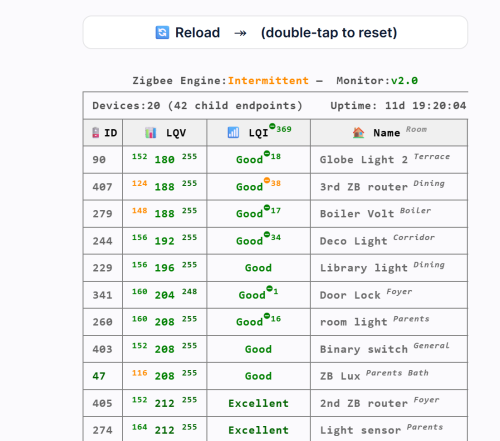
🪫 ID Device ID with battery status. Battery devices show color‑coded percentage; routers show “Serves as Router.” Ghost nodes appear as 👻.
📊 LQV (LQI value) Shows min / current / max LQI values recorded since last reset. Helps identify unstable or fluctuating devices.
📶 LQI (Quality Status) Color‑coded signal quality label: Excellent, Good, Weak, Poor, Critical. Includes drop‑severity superscripts when applicable.
❤️ Alive Displayed only when at least one device is dead. Shows “false” in red for non‑responsive nodes.
🏠 Name Room Device name with room shown in superscript. Ghost devices show their IEEE address instead.
📦 Type Indicates whether the device is Battery‑Powered (with percentage) or Serves as Router.
🔖 Vendor Manufacturer reported by the ZigBee device.
🔢 Model Device model identifier (e.g., E1743, SNZB‑02).
🧬 Family Routing family chain showing how HC3 child devices relate to each other (e.g., 123👥🡒456🡒789).
Requirements
-
HC3 with ZigBee enabled
-
QuickApp variables: user, password (secured)
User and Password
The QuickApp needs credentials to access the internal ZigBee API through the HC3 proxy.
Enter its username and password in the QA’s Variables tab.
The QA automatically encodes these values and uses them only for read‑only Zigbee queries.
Note: For security, you can create a dedicated HC3 user with limited permissions (not your main admin account)
What It Shows
ZigBee Engine status
ID, LQV (with min/max range), LQI status, Alive (if needed), Name and Room, Type, Vendor, Model, Family.
Please download and review the ZigBee Monitor User’s Guide for further details.
You can also download the ZigBee & HC3 Capacity Planning Guide, which helps you build a more stable and reliable ZigBee network.
Edited by cag014
What's New in Version 1.2 See changelog
Released
🔋 Battery Level Integration
- Added battery percentage detection for all battery‑powered Zigbee devices.
- Battery status is now shown directly in the table with color‑coded text based on charge level.
- Supports all devices reporting batteryLevel.
🔄 Table Reset via Double‑Tap (User Request)
- Added a quick “double‑tap to reset” action.
- Double‑tapping the QA tile clears stored device information and forces a fresh rebuild of the table.
- Useful after re‑pairing devices or cleaning up outdated entries.
💬 Community Note
- This feature was added directly in response to user requests, so thank you to everyone who suggested it.
- It’s a small change that makes maintenance much smoother.
🧹 Other Improvements
- Minor internal cleanup and consistency improvements.
📥 Installation Instructions
For New Users
If you are installing the QA for the first time:
-
Download
LQI.v1.2.fqa -
Open your HC3 → Settings → Devices → Add Device → Upload File
-
Upload the
LQI.v1.2.fqafile -
The QA will appear automatically and start building the tableThis is the full package and includes all required code and configuration.
For Existing Users (Updating from an earlier version)
If you already have the QA installed:
-
Download
LQI.v1.2.txt -
Open your existing QA on the HC3
-
Replace the current main code with the content of the
.txtfile (copy & paste) -
Save the QA
-
The table will refresh automatically on the next update cycle
This method keeps your existing QA instance, variables, and settings intact.