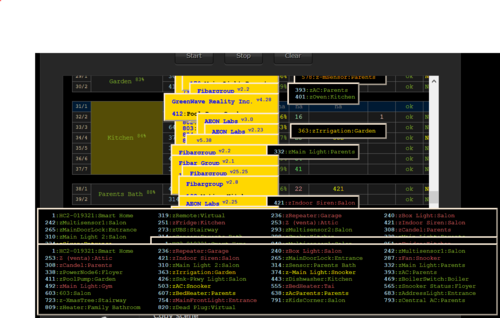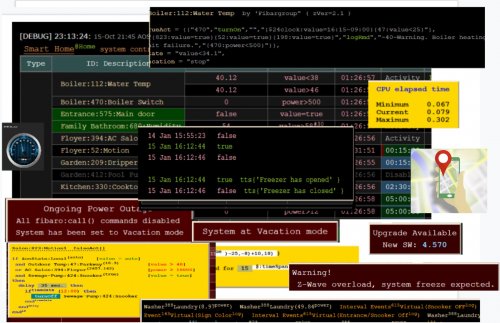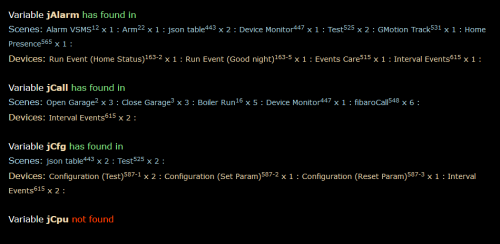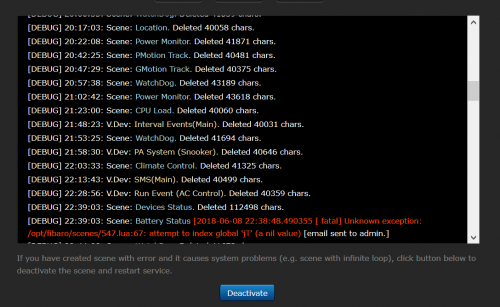
About This File
🧠 What AOQ (All-in-One QuickApp) Offers
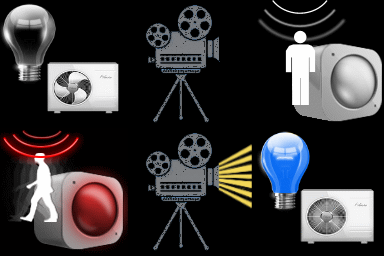
- Multi-System Control: Seamlessly manages HC3, HC2, and HCL controllers using master/slave architecture.
- Unified Automation: Replaces scattered Lua and Block scenes with one centralized QA.
- Device Intelligence: Auto-detects Z-Wave, ZigBee, Nice, QA devices, and scenes.
- Alarm Zone Management: Identifies breached zones/sensors and triggers actions.
- Custom Events & Profiles: Supports dynamic profiles and custom rule-based automation.
🛠️ Core Configuration: Job Management - jM{} Hash Table
Each line in jM{} includes:
| Field |
Description |
|
|---|---|---|
| Time Span |
Duration in minutes for monitoring or action. |
|
| IDs List |
Devices/scenes/variables/keywords (e.g., `"137,630" |
|
| Criteria & Rules |
Optional conditions like |
|
| Action Tables |
Optional commands: |
🔄 Device Aliasing with jS2n{}
Avoid hardcoding device IDs:
jS2n = {mSensor=200, boiler=137, dryer=630, light=230, timeScene="_17"}
Use aliases in jM{}:
jM={
{15,"`mSensor`",{state="value=true", trueAct={"`light`", "turnOn"},falseAct={"`light`", "turnOff"}}}
}
🔍 Monitor Option
Detects inactivity or failure to report:
{8, "`timeScene` and _545", {timeSlot="10:00~22:00"}} -- scenes must be active every 8 min between 10am to 22pm
{10, "`boiler`and 145", {property="power"}} -- must report power every 10 min
{30, "`boiler`", {state="power>100"}} -- alert if power >100 for 30 min
⚙️ Control Option
Example: Turn on light when motion sensor is breached, turn off after 3 min when motion sensor back to safe:
jM={"`mSensor`",{state="value=true",trueAct={"`lightSw`","turnOn"},falseAct={"`lightSw`","turnOff", "180"}}}
To restrict to nighttime:
jM={"`mSensor`",{state="value=true",timeslot="18:00~07:00", trueAct={"`lightSw`","turnOn"},falseAct={"`lightSw`","turnOff", "180"}}}
Example: Turn on light when motion sensor is breached, turn off after 3 min (regardless of when motion sensor back to safe)
jM={"`mSensor`",{state="value=true", trueAct={{"`lightSw`","turnOn"},{"`lightSw`","turnOff", "180"}}}}
🧪 Debug & Table View
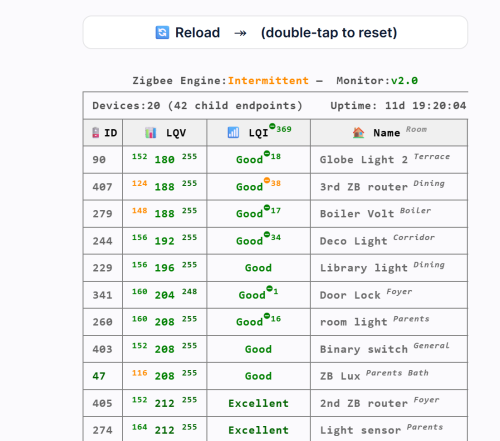
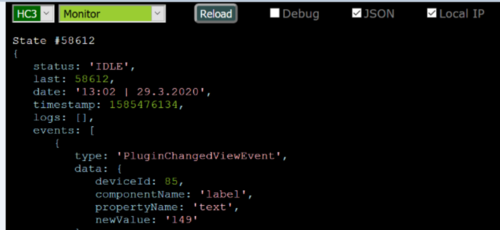
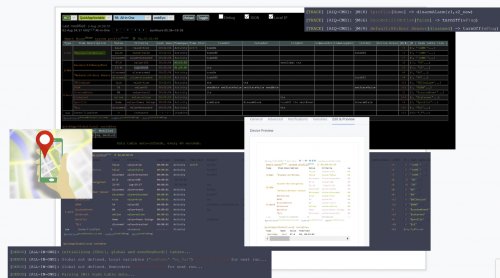
- Debugger Output: Shows executed commands with color-coded status.

- Table Header: Displays system info, sunrise/sunset, home/vacation mode, system traffic.
-
Columns:
- Device type, ID, name, battery status
- Criteria evaluation
- Alerts and elapsed time
- Action tables and active rules
📊 Top Active Monitor (New) AOQ now includes an enhanced Top Active Devices monitor designed to identify devices that may destabilize HC3 performance.
It analyzes lifetime activity, current load per hour, and burst behavior to detect devices generating excessive or abnormal traffic.
The table highlights devices that may cause delays, radio congestion, disconnects, or even controller restarts.
A Peak/h column appears only when abnormal bursts are detected, helping users quickly locate problematic devices without cluttering the interface.
📘 Want to Go Deeper?
You can find the full documentation and guides on the Smart Home Forum by FIBARO, including:
- AOQ Advanced User’s Guide
- AOQ Quick Guide
- AOQ HC-WebEye Viewer
Edited by cag014
Updated
What's New in Version 16.4 See changelog
Released
New features requested by users.
Added devPrt global parameter to define format of the device shown on the debug console
devPrt="room:nameid" shown as Entrance:Main Door'hc2
Added new operators for statement and conditions:
>> pattern doesn’t found in the device’s state or the property, based on LUA find()
Added dbgCalc global parameter to display detailed formula calculations of command's parameters. Default value is false.
New features
- Major "face lifting" on console view
- set subjective (individual) condition(s) for specific device. No need to re-write same condition over and over
- Improved else case in conditions to replace part of the statement and not to re-write the entire statement.
- List of given IDs could be separated by "|" "and" "," "|456|" or "456" or "456|607" or "|456|607|" or "456 and 607" or "456,607" or "345|_45 and &varname,$RAM"
- please download AOQ Advanced User's Guide and use hyperlinks (right after index table) to review new features.
Bugs Fix
-
QuickAPP functions could be used as commands (without using add sign +)
Update Procedure
New users:
Download AOQ-v19.4.fqa and add to the system as QA device
Exist users:
Download AOQ-main-v19.4.txt and copy to main file in your QA.
Please add new global parameters in user_data file. Refer to Advanced User's Guide.
Please backup your previous QA.